
How to Use Zoom?
A basic step by step guide of how to use the video meeting software.
At times like these the need for human interaction has never been greater. As people turn to alternatives to hold meetings, webinars and family gatherings online tools have become essential knowledge. Thankfully there are many options during this time of quarantines and lockdowns; these include Facetime, Skype, and WhatsApp to name a few. Remember when choosing which platform to work with, look at the pros and cons including the security of any app.
We know for some this can be a daunting change and have created this article to help you move over to this new way of working and living. This article will focus on Zoom and how you can sign up and use the platform.
Firstly, we will focus on downloading the app; this is the fastest and easiest way to use Zoom regularly. Follow the step by step guide below to have Zoom up and running for you to join webinars, host meetings, and family gatherings:
- The first thing to do is to make sure you have a Zoom account. For those without one you can sign up here. You might want to review pricing to decide which package you would like to sign up to.
If you intend to attend meetings and host small meetings, then the free package should be fine for you; you will be limited to 100 participants and 40 minutes meeting time. If you wish to host longer meetings you will need to sign up for one of the paid for options. To host webinars (allowing you to use features such as ‘polls’), you will need to be a paying user and ‘add’ the webinar tool as a bolt-on which also incurs a fee (payable monthly or yearly). Webinars can host up to 100 – 10,000 people and have up to 100 panellists and the price is tier-structured. Once you are signed up you can start downloading the app. Firstly visit Zoom and click on Download Zoom Clients for Meetings.
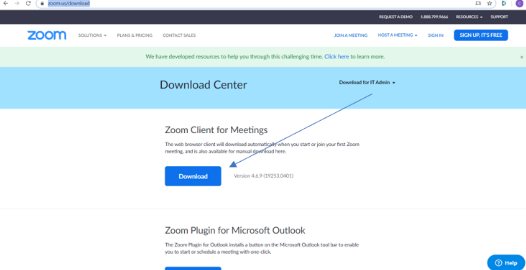
There will be a small bar in the left-hand side of your screen that reads Zoominstaller.exe or very similar, click on this bar. If you are using Mac go to the arrow on the top right of the internet screen.
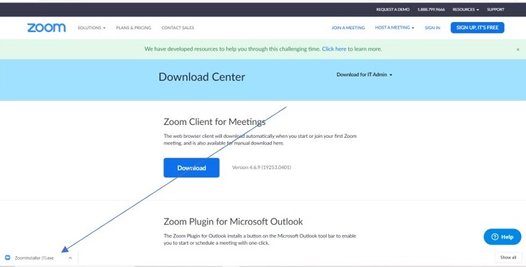
Once you have done this you will see the initializing bar. Once this is at 100% the app is installed. You can open it by typing Zoom into the Search your files bar and you will see 'start app' which will launch the box below. On Mac to find files you go the Launch Pad and search at the top.

After selecting sign in you will be provided with the options.
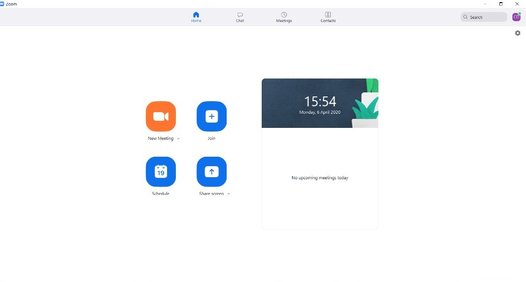
- To Join a Meeting, you need to click join and you will be prompted to add the Meeting ID and Meeting Password. These need to be provided by the meeting host. They may also invite you with a link that you need to click on. This will launch the app.
To Start a meeting, you will need to invite participants by clicking on Invite button shown.
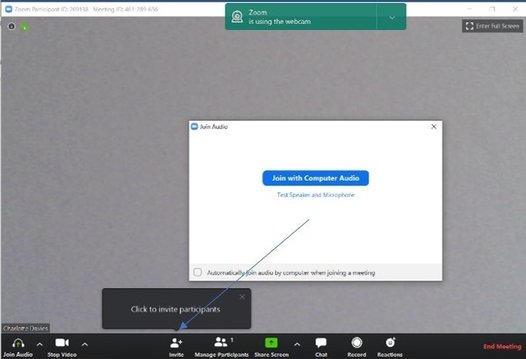
You can then either send them an email with the link to the meeting or let them have the meeting ID and Password. These can be found by clicking invite participants and are show on the screen shot 6.
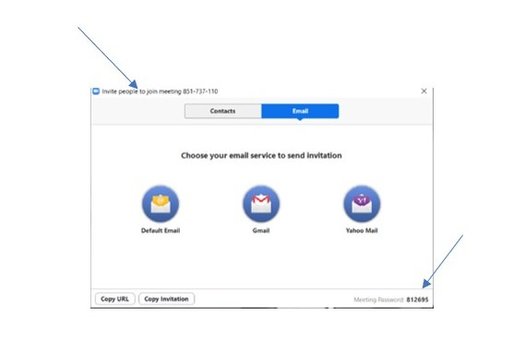
- Once you have invited participants you will have to admit them by clicking manage participants as shown at the bottom of screenshot 5.
- As the host if you end the meeting, as shown at the bottom of Screenshot 5 then the meeting will end for everyone on the call.
This article is the basics to get you started and using Zoom. More in depth instruction can be found on the Zoom site.

Exploring the new WELL Interiors designation with IWBI Senior Vice President Ann Marie Aguilar

The Brooking Collection brings together architectural features spanning five centuries of British design and craftsmanship, from historic windows and doors to staircases and decorative ironwork.

We're looking for BIID Registered Interior Designer® to volunteer as mentors for our Student Design Challenge this November

Mark Lissauer of Christopher Hyde Lighting on the enduring appeal of classic lighting

Sam Fisher, Event Director of Decorex, explains what visitors can expect at this year’s show

Practical guidance to support more responsible choices across the design and construction industries